
Drag and drop on the calendar
On a computer or a tablet, fit something in, move an appointment or take it off the calendar, each with a single move.
On a computer or a tablet, the calendar and your things to plan sit together: the week, with the tabs of your things beside it (or below it, on a tablet held upright). Everything a thing's buttons do, you can also do by dragging it, in the Day or Week view, the ones that show the hours.
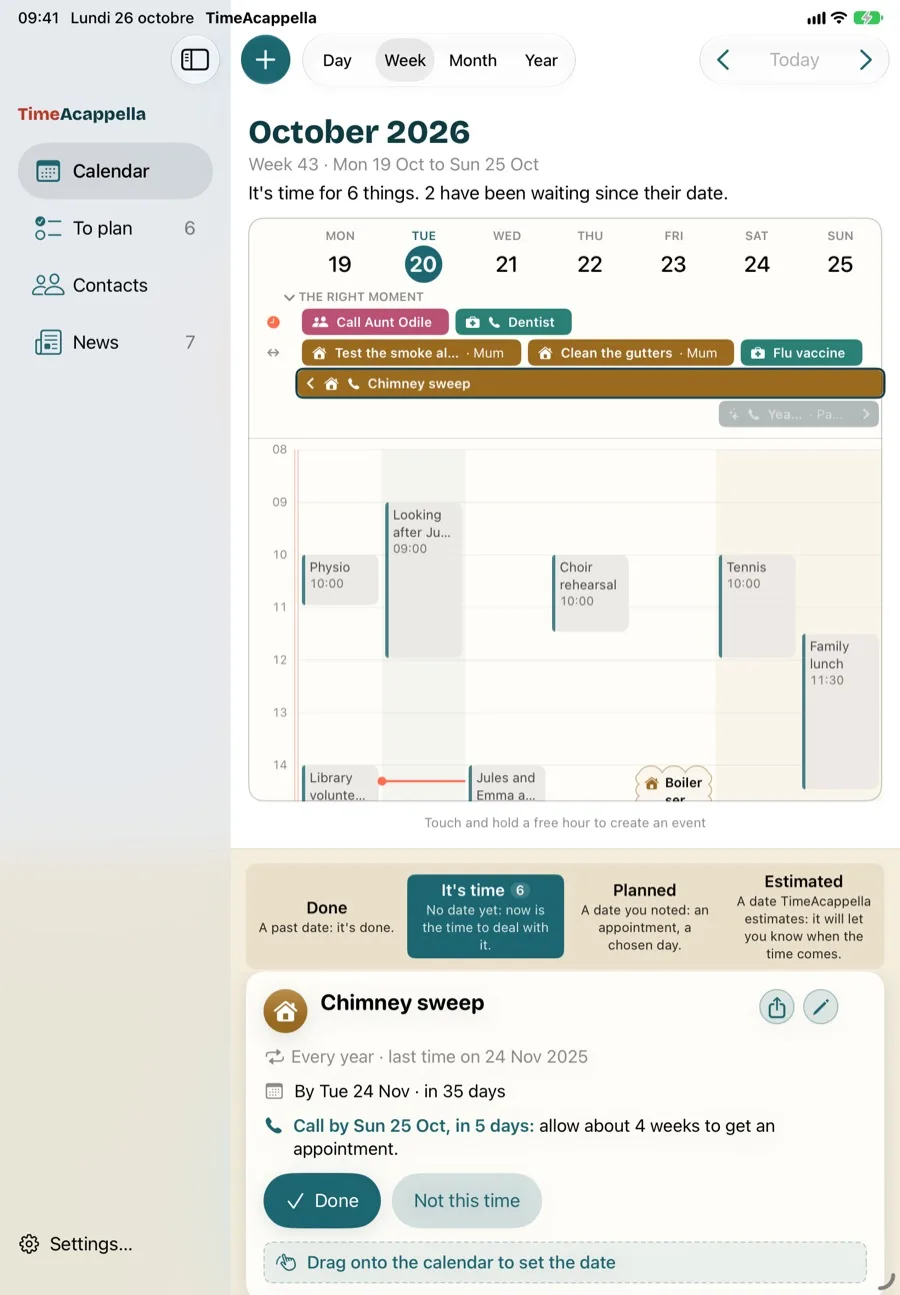
Fit something in
Drag a thing from “It's time”, or from the “The right moment” strip, onto an hour in the week. As you drag, a bubble shows the day, the time and what will happen. The red line that marks the current time decides what happens:
- After the line, the thing is planned. “Appointment booked” is for an appointment to book, which goes into your calendar. “To do here” is for a task, which is fitted in at that time.
- Before the line, on a past day or earlier today, the thing is marked as done at that time: “Already past: marked as done”.
- On the name of a day, or in “All day”, the thing takes up the whole day, with no time: it's planned for that day, or done if the day is past.
You're always asked to confirm, because the thing is getting a real date. The question already tells you when it will come round again: “Add the “Chimney sweep” appointment? Appointment on Thu 22 Oct at 10:00. Then around October 2027.” Dropped it by mistake? Answer no and nothing changes. Afterwards, the bubble repeats it, with “Undo”.
Move an appointment
Drag an appointment or a fitted-in task to another time or another day. The question tells you where it's moving from and to, and your calendar follows. A thing that's already done moves the same way, so you can change when it was done. If you drag it past the red line, it's no longer done and becomes planned for that time instead.
Take a thing off the calendar
Drag an appointment, a task or a thing that's already done from the week to the “The right moment” strip, or to your tabs. They become outlined and tell you what will happen. When you let go, the thing loses its date, with no question asked:
- “Cancel the appointment”: the appointment leaves your calendar, as if you'd never booked it.
- “Remove from the week”: the task comes out of the week.
- “Not done”: for a thing ticked by mistake. Its tick leaves the calendar, and the thing is back on your list to do.
The thing goes back to its right moment, and your tabs show you where it has ended up.
On a phone
Here, the calendar and “To plan” are two separate tabs, so you make the same moves with the buttons of a thing once it's opened out. On the iPhone, in the calendar, you can also move an appointment, a fitted-in task or a thing that's done with your finger: press and hold, then drag. On an Android phone, everything is done with these buttons. See Book an appointment and Choose the day for a task.